People · Onboarding
New people fill in their own details. You don't retype anything
You create the profile in three steps and Selfcare sends the invitation. The person activates their account and adds their personal details, IBAN and documents in a wizard that takes a few minutes, on a computer or a phone. At the end of the month, everything is ready for the first payslip.
Day one shouldn't start with paperwork
The paper hiring form, the NIF (tax number) and IBAN asked for by email, a copy of the ID card over WhatsApp, and someone typing it all into the payroll software. Then at the end of the month you find out the NISS (social security number) is missing.
How it works
- 1
HR creates the profile
Name, emails, job title, teams, contract and salary, in three steps.
- 2
The invitation goes out
It reaches the person's personal email and they activate the account with their company email.
- 3
The person completes it
Personal details, IBAN, address, contacts and documents, in 3 to 4 minutes.
- 4
Ready for the month
Hiring-year leave and the first payslip pro-rated, with no sums by hand.
See onboarding working
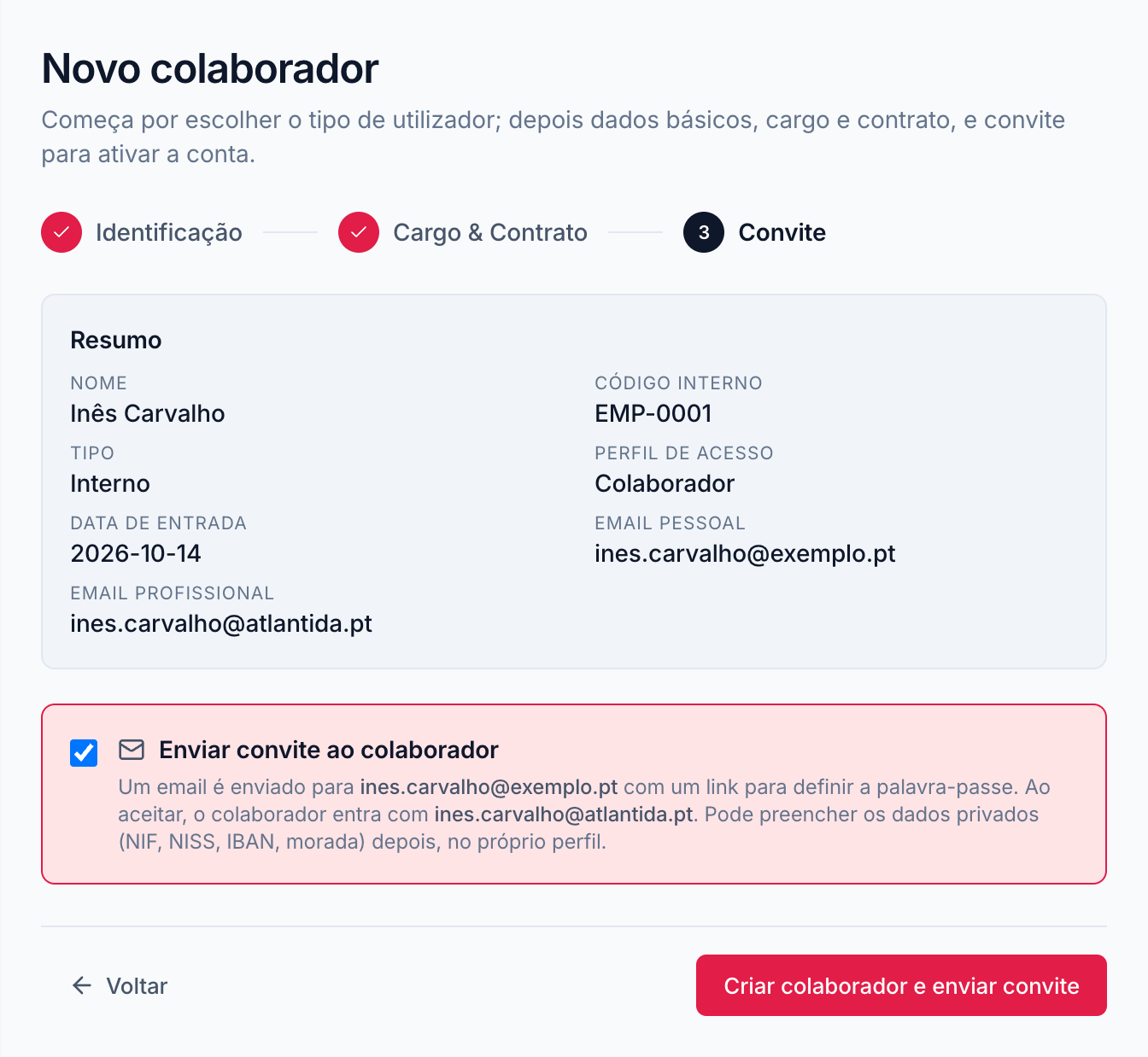
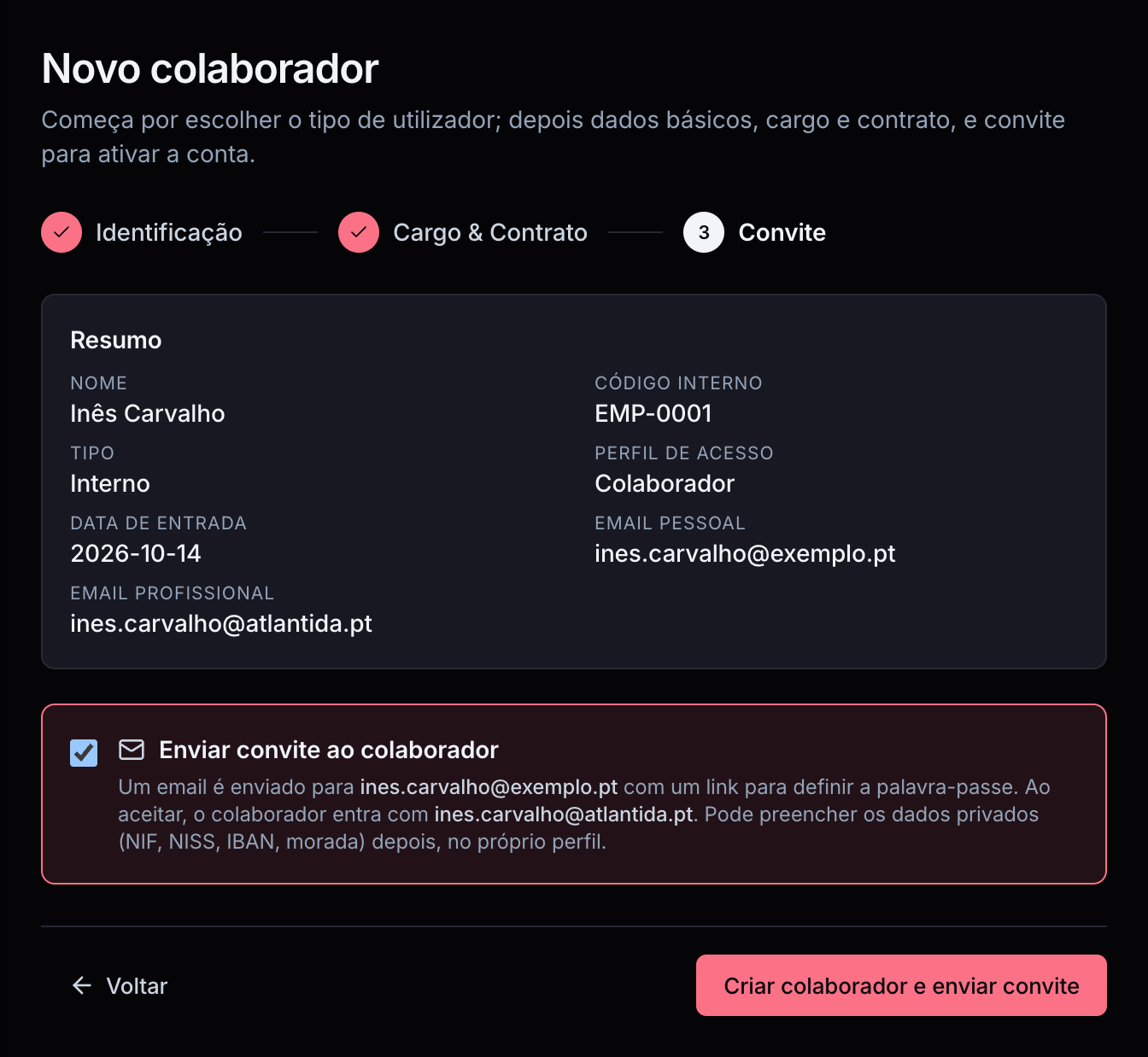
1 · HR creates the profile
Three steps and the profile is done
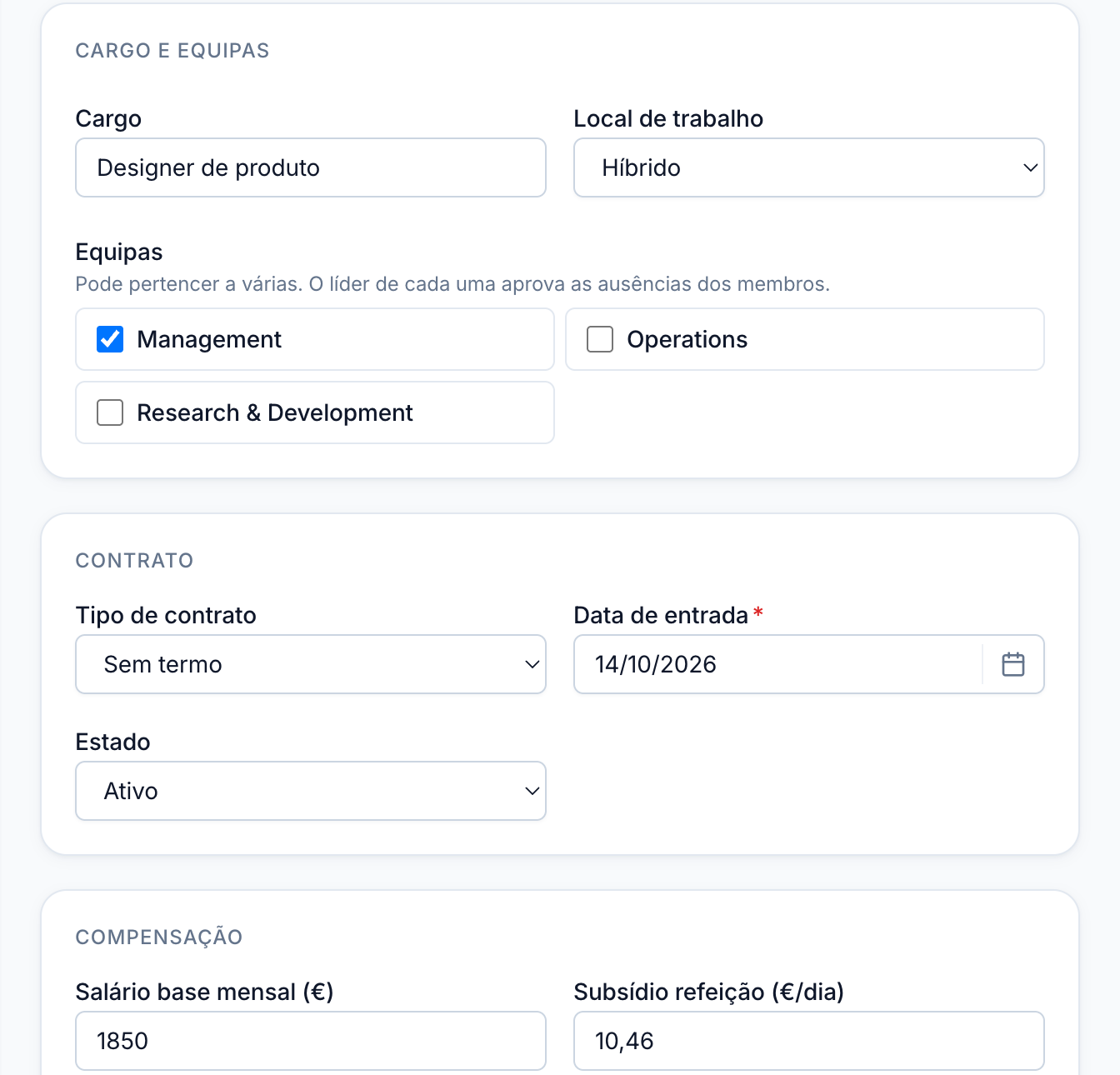
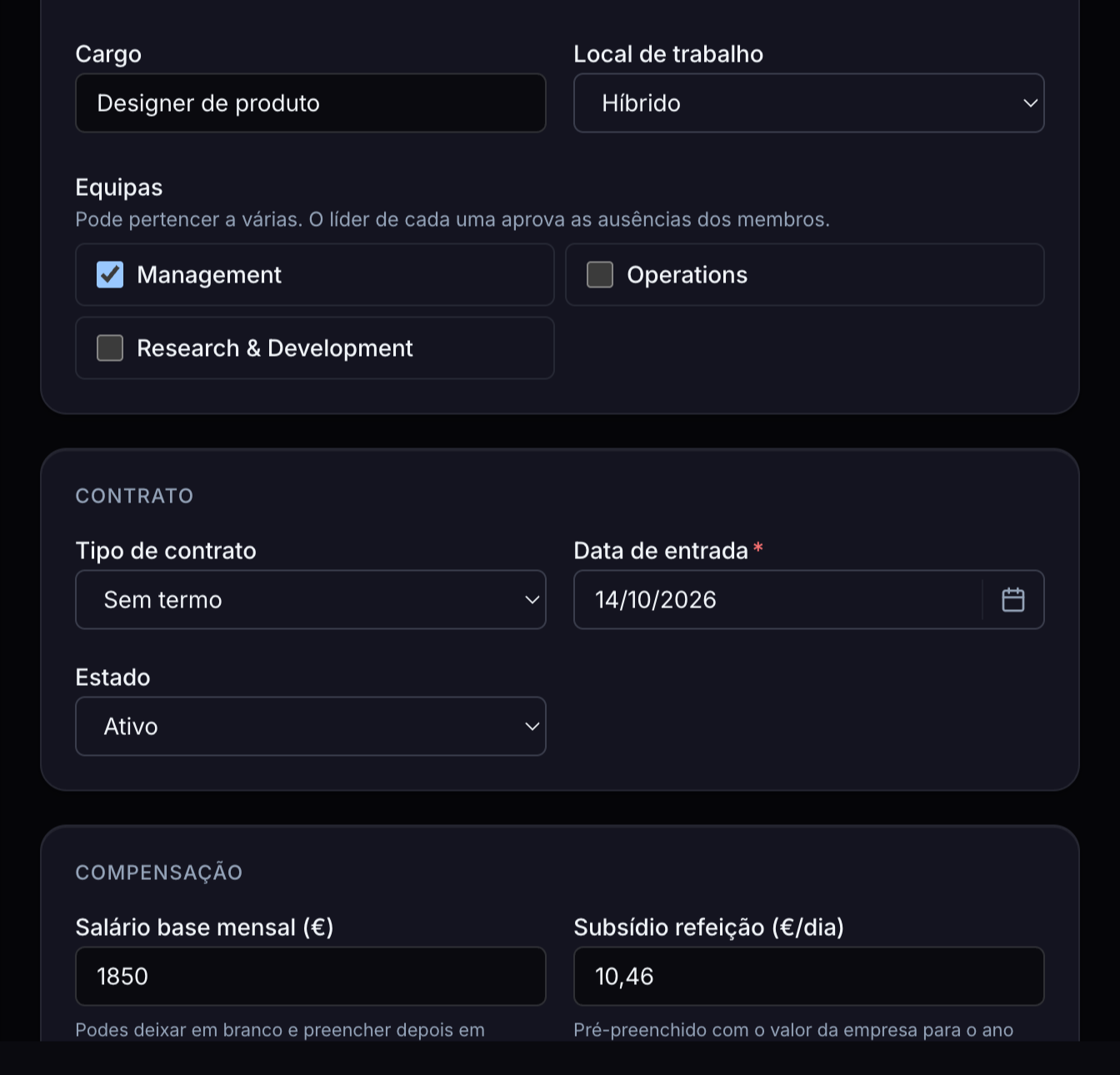
Identification, job and contract, invitation. Only what HR knows on hiring day: the rest is for the person to fill in.
- Internal employee or service provider, each with their own contract and pay
- Internal code assigned by Selfcare, which can't be changed by hand
- A person can join several teams, and each team's leader approves their absences
- Subsídio de alimentação (meal allowance) already filled in with the company's amount for the year
- Access profile chosen on entry: employee, manager, HR or accountant
- Hiring lots of people at once? Import from Excel and invite everyone in one click
2 · The invitation
The invitation goes to the personal email, the account stays on the company one
Before day one, the person's company email isn't working yet. So the invitation goes to their personal email and tells them which email they'll sign in with.
- Invitation valid for 14 days, which you resend or revoke from the profile
- Anyone who already uses Selfcare at another company signs in with the same account
- Alternatively, a join link: people with a company email join by themselves, once they prove the email is theirs
- Sign in with a password or a Google account
- A code by email at every sign-in, from day one
A 30-minute demo with your own data imported live.
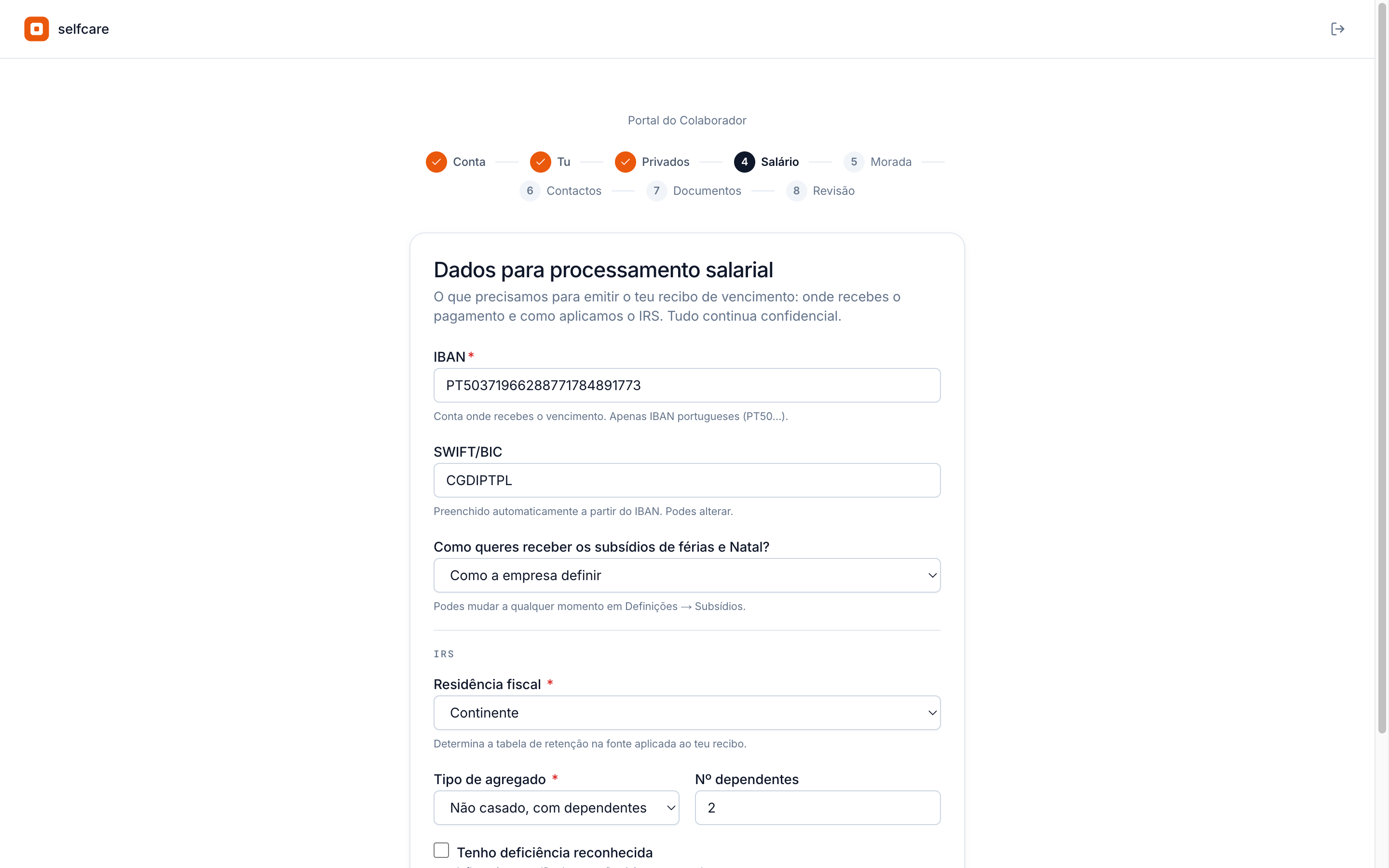
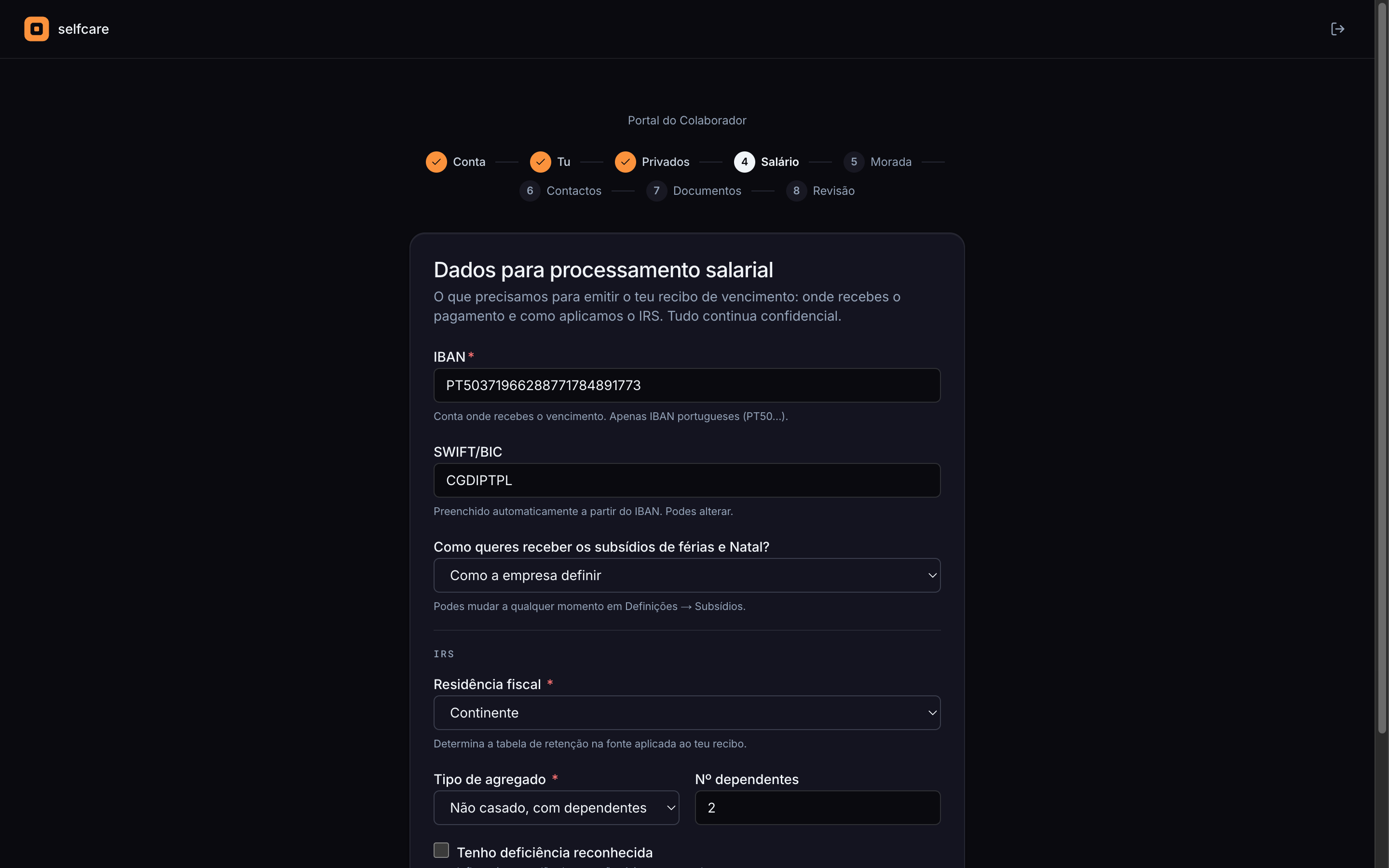
3 · The person completes it
3 to 4 minutes and the data is right the first time
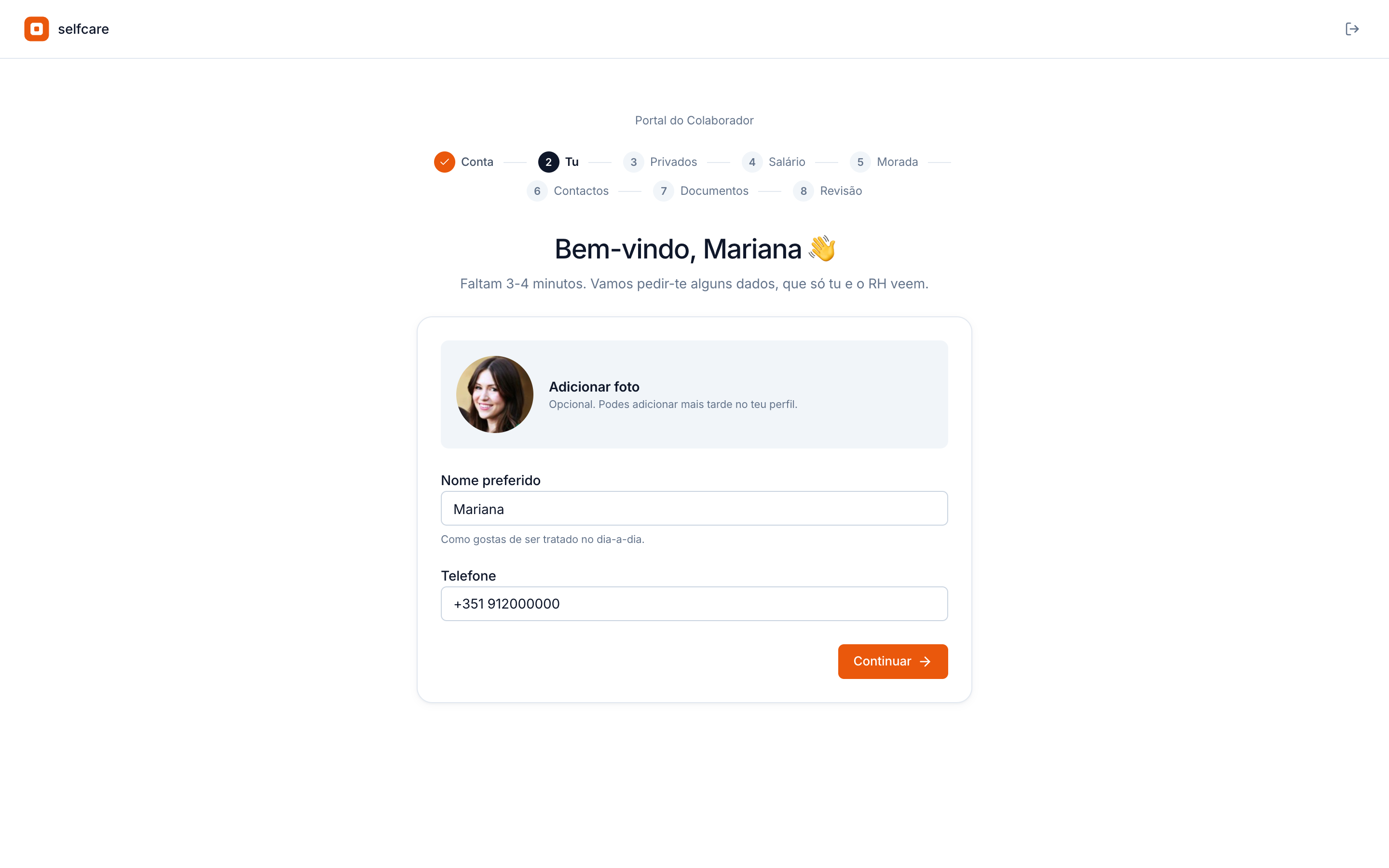
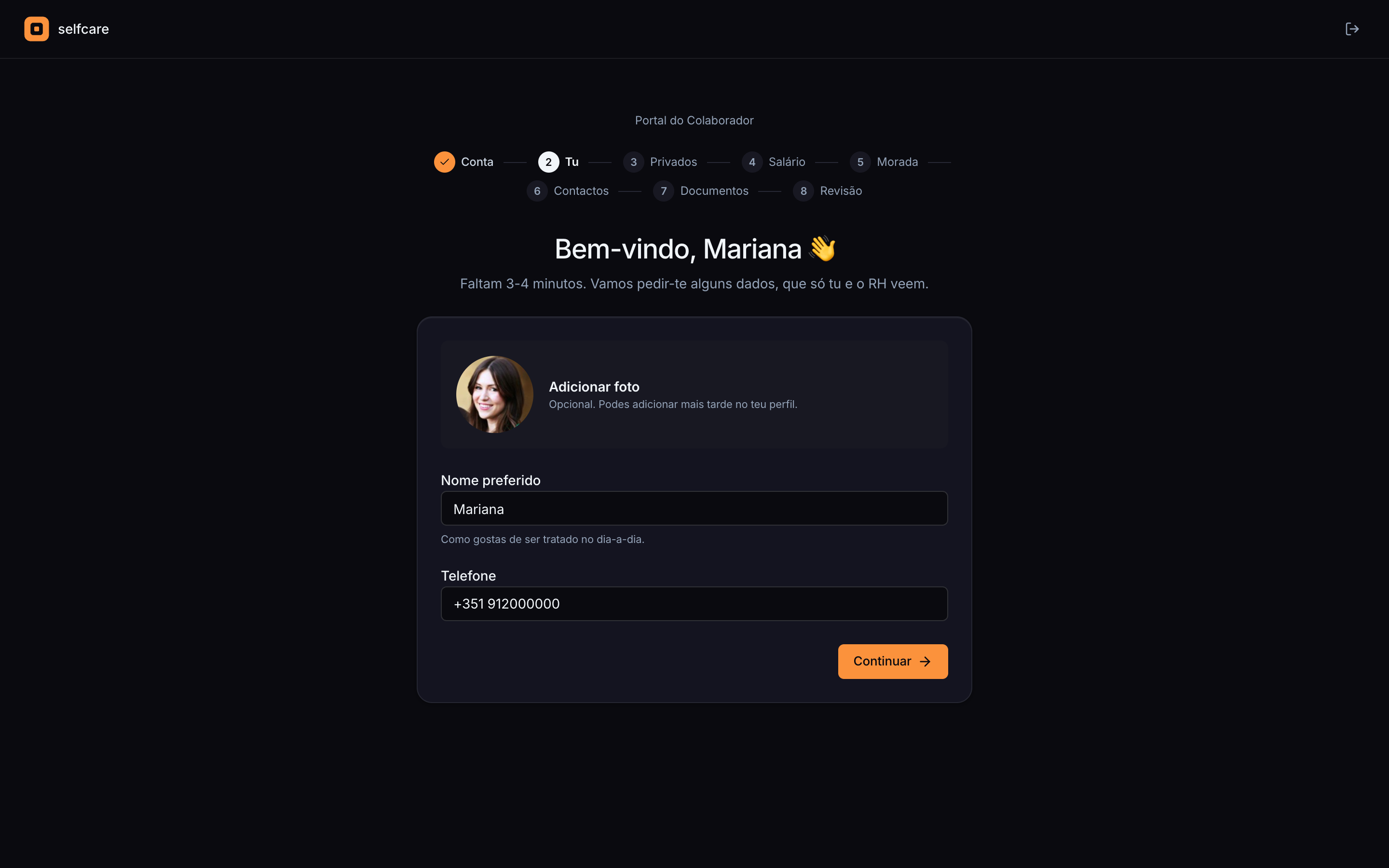
When they activate their account, the person enters a wizard that asks, step by step, for what payroll needs. Whoever types the NIF is the one who knows it, and Selfcare validates it before saving.
- Photo, preferred name and phone
- Date of birth, nationality, ID card, NIF and NISS, with the check digits verified
- Validated IBAN, tax residence, household and dependants for IRS (income tax) withholding
- If the company decides on the holiday and Christmas allowances (subsídios de férias e de Natal), the person sees "Set by the company" and chooses nothing
- Address and municipality, emergency contact and the fields your company added
- Each person decides whether to share their contacts and birthday with colleagues
- Each step saves by itself: they can stop halfway and come back later
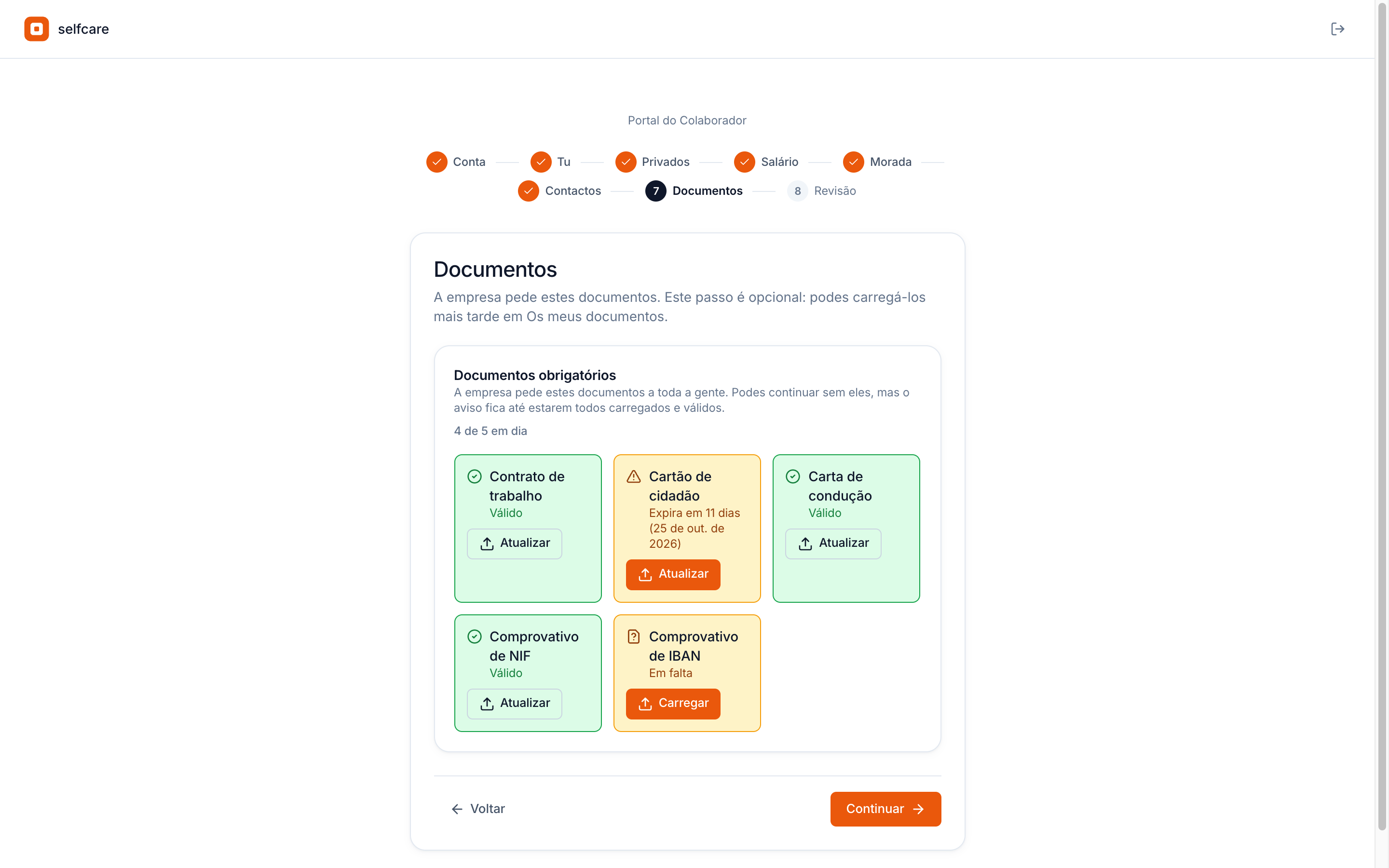
Documents
Documents requested right at the start
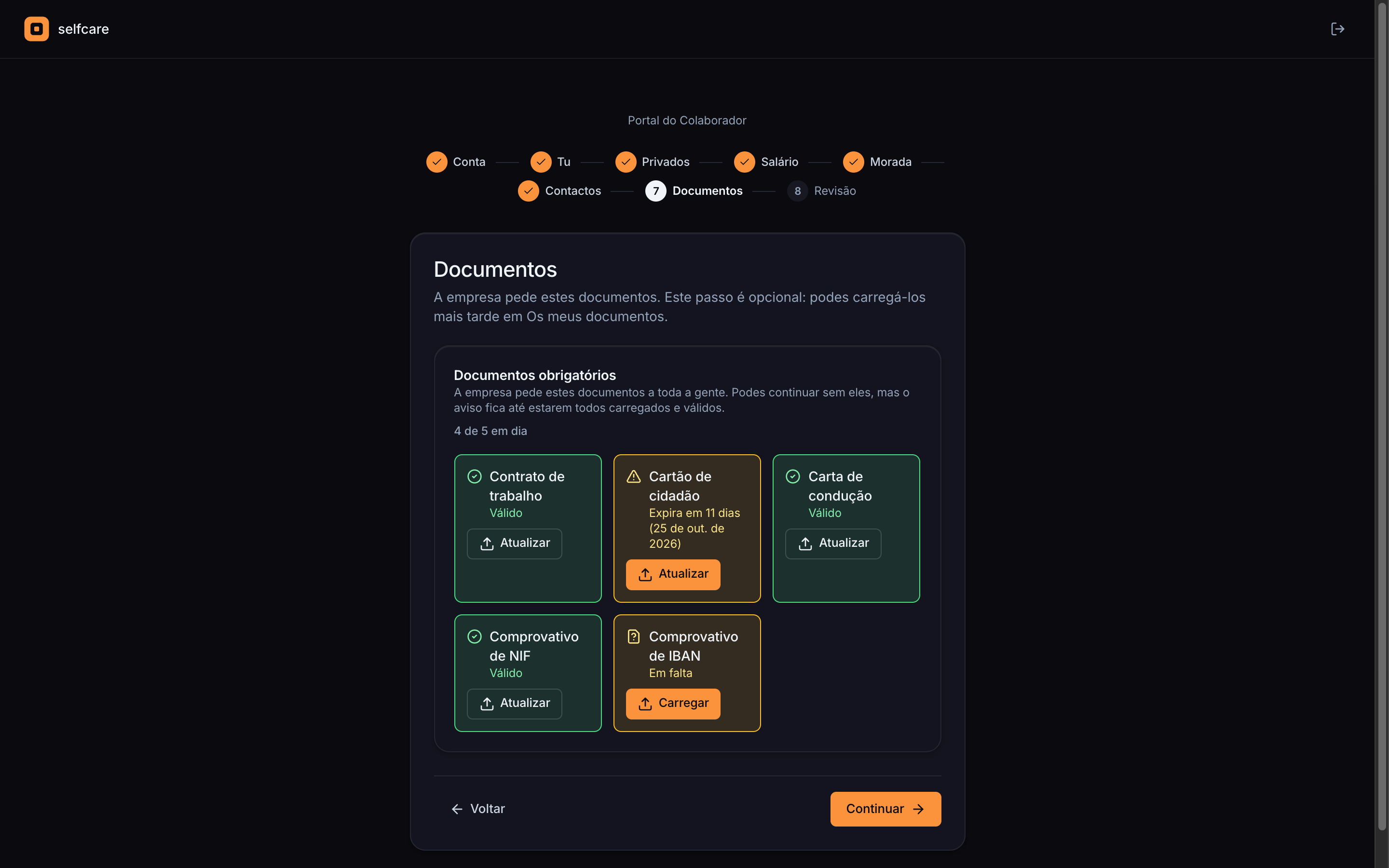
The wizard asks for the personal documents the company requires: the ID card, the proof of IBAN, the driving licence. On a phone, you take the photo right there. The contract stays on the company's side, in the person's folder.
- ID card with front and back together in one PDF, or as a single document
- An expiry date for each document, with a reminder to the person before it expires
- If HR wants, it validates each document before it counts as delivered
- By default nothing blocks: anything not uploaded stays as a reminder in the person's area
In the demo we run the import live, with your data.
Configurable · New
You decide what's asked for, what's required and who collects it
In Settings → Onboarding you choose, for each profile field and each document, whether it's Required, Optional or Don't collect, and whether the employee or HR collects it. The ID card can be required and the proof of address optional, for example.
- Required, Optional or Don't collect, field by field and document by document
- Who collects: the employee sees only what's theirs, and steps left empty drop out of the wizard
- Onboarding only finishes once everything required of that person is filled in and uploaded, and Selfcare says what's missing
- Fields HR collects appear as soon as you create the profile, in New employee, and the required ones are needed to move on
- HR's part doesn't hold the person up: on the profile, HR sees how many required items are done on each side, and what it still has to fill in
- Documents required across the whole company, with reminders and expiry alerts, stay separate
- Until you turn the configuration on, onboarding stays as it is
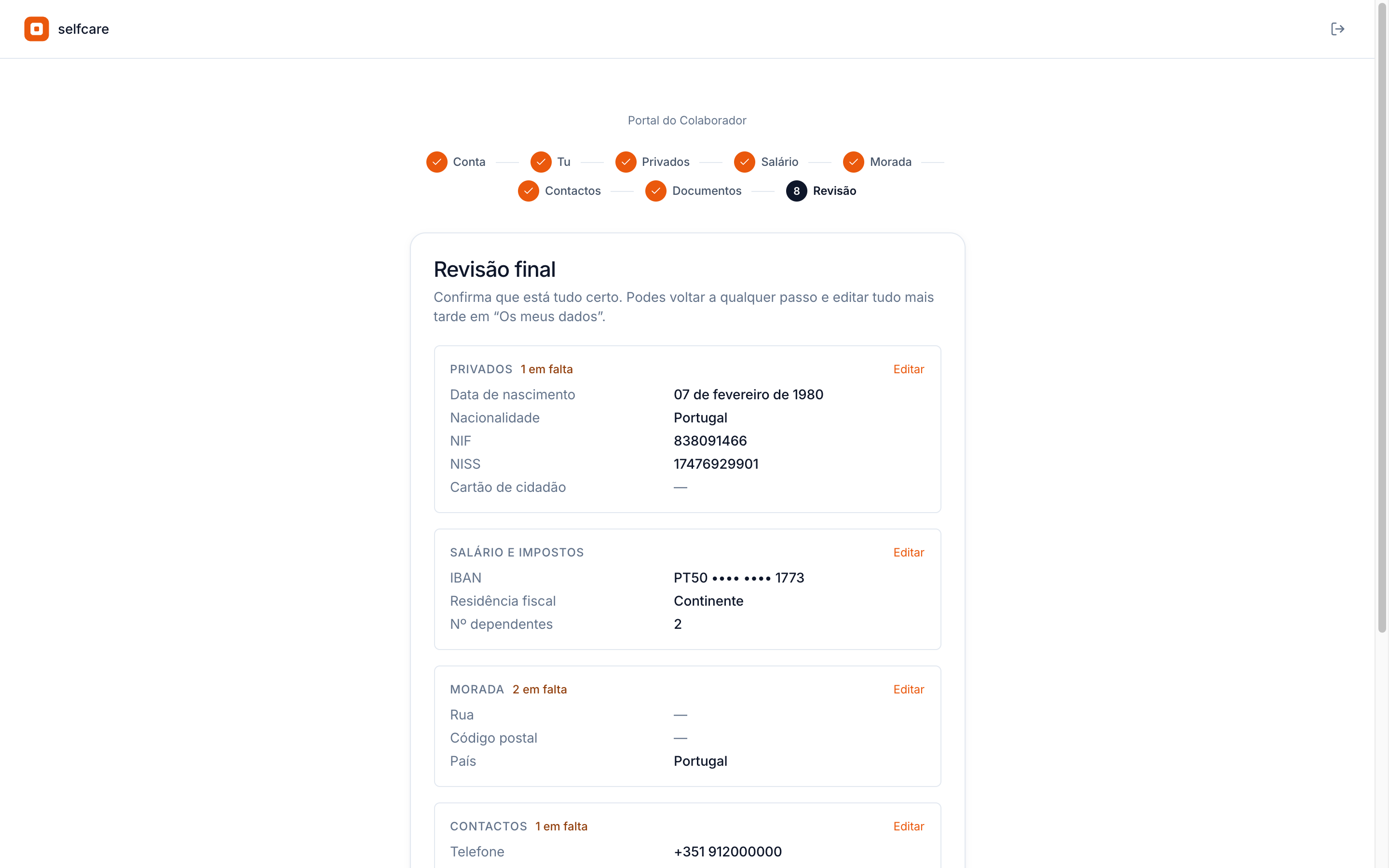
Review
Nobody gets stuck halfway without you knowing
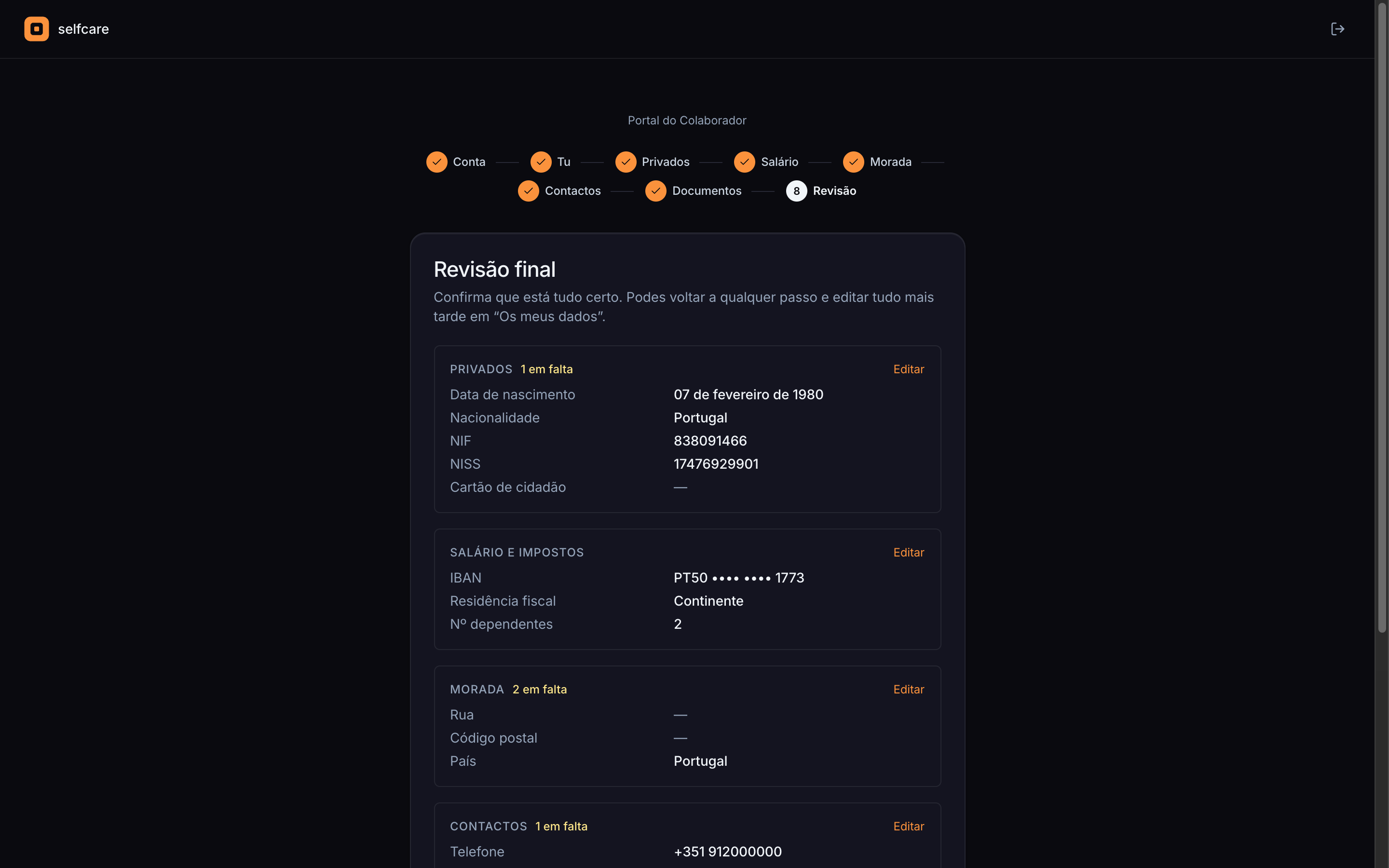
At the end, the person sees a summary of everything, with what's missing in each section. If they don't finish, Selfcare reminds them, and HR sees what's missing before it holds up a payslip.
- Summary by section, with the IBAN masked and an Edit on each one
- Email reminder on day 3 and day 7, only to those who haven't finished
- A missing-data warning on the profile until the record is complete
- HR sees who has no NIF, NISS, IBAN or date of birth before month close
- An IBAN change after onboarding alerts HR and the accountant
4 · Ready for the month
What gets handled without anyone remembering
The start date is enough for Selfcare to do the hiring-year sums.
Leave in the hiring year
2 working days for each full month of contract, up to 20, as art. 239 of the Código do Trabalho (Labour Code) requires. The person sees the balance straight away.
First payslip pro-rated
Anyone who starts mid-month is paid for the days since they started, with holiday and Christmas allowances pro-rated to the hiring year.
Who approves absences
The leaders of the teams the person joins start approving their absences. There's nothing to configure.
Company shutdowns already booked
If the company already has a shutdown booked, the new person joins it, first using their leave balance and the rest as paid days.
The right municipal holidays
The municipality the person gives in their address decides which municipal holidays count.
Everything logged
Creating the profile, accepting the invitation and each piece of data filled in go in the audit log, with who did it and when.
See Selfcare with your data
The new person's data, only for those who should see it
Only the person themselves, HR, the owner and the accountant see the NIF, NISS, IBAN, address and salary. Colleagues and leaders never see tax or bank details, and the server decides that, not the screen.
Frequently asked questions
Does the person have to complete onboarding?+
Not by default. Each step is optional and saves by itself. Anything missing is flagged on the profile, and Selfcare sends a reminder on day 3 and day 7. If you mark fields or documents as required in Settings → Onboarding, the person can only finish after handing them in.
Can I ask the employee for some data and leave the rest to HR?+
Yes. In Settings → Onboarding you choose who collects each field and each document. The employee sees only what's theirs. What's HR's appears on the profile, with progress, and doesn't stop the person from finishing.
Can HR fill in the details for the person?+
Yes. Everything in the wizard can also be filled in on the employee profile.
Who decides how the holiday and Christmas allowances are paid?+
By default, the person chooses in onboarding. If you'd rather the company alone decides, turn on the option in Settings, Allowances. The person then sees “Set by the company” and can't change it, and HR, the owner or the accountant set the option on each employee's profile.
Does it work on a phone?+
Yes. The invitation, the wizard and the document photos all work on a phone.
Does it also work for service providers?+
Yes. When you create the profile you choose service provider, with the monthly or daily amount and whether absences are paid.
What about the accountant or an outside HR person?+
Choose “Portal access only”: they get the invitation and sign in without an employee profile, without counting for payroll.
Can I bring in the people I already have?+
Yes. You import the list from Excel or a CSV and invite everyone at once. Each person completes what's missing in the same wizard.
Can the contract be signed in Selfcare?+
Not yet. In Documents, you ask for read confirmation of the contract, with a record of who read it, which version and when.
See onboarding working
In a 30-minute demo we create an employee, send the invitation and show the wizard from the new person's side.